Installing Guix, a journey in several parts
It’s only about 5 months later than I intended it to be, but this is the promised second article about Guix, after I gushed about it at the end of last year.
In this post I want to talk about where I am on my road to Guix, and explain the process of getting Guix up and running on some real hardware (which is sadly not as easy as I want it to be)
Introduction: Initial status
Last year I mentioned how impressed I was with Guix and how much I was really enjoying it on my laptop and that I had planned on rebuilding my main workstation over the Christmas break.
Well that didn’t happen.
A few days after writing that post, I was getting frustrated with Guix and I ended up wiping my laptop and moving back to NixOS.
This decision came down to a combination of things: missing packages, annoyances with disk encryption, difficulty in finding answers to my questions online, and honestly, some outside pressures that just made me a bunch more irritable than normal and meant that I had less patience for computers than I usually would!
So I went forward with NixOS, and continued building my config out for that. I built a devShell for Ruby interpreter development, ported over my sway configuration and generally had an ok time. I ran it on both my laptop and my workstation as well as one of my work machines (the other is a Mac) and got on with the rest of my break.
But something was nagging at me every time I actually used NixOS - I just don’t like working with it. I kept wishing that I could use a real programming language instead of fighting with the idiosyncracies of the Nix language and it’s clumsy handling of variables and parameters; I found the duplication of services frustrating - having to install sway system-wide so it could interface with a display manager and have it in my home-manager config so I could set it up annoyed me.
I kept comparing how much more thoughtful the Guix command line interface was
than the Nix one (even with the experimental nix tool), I kept finding myself
reading the Guix documentation and thinking about how I’d implement parts of my
Nix config in Guix, and poring over my original Guix config repo and thinking
about how to structure it better,
So, eventually, a few weeks ago, I made a list of all the things that I wanted to fix in Guix and set about installing it back on my Laptop again.
Since then I’ve been steadily working through issues, and accepting that it’s going to be a journey. But I’ve been getting a good feel for the language and the system I think.
It does help that my laptop is not my main machine, my workstation is where anything of consequence happens, and I have seperate machines for my work. So I can afford to take this slowly and work out issues as I run into them. I’m still going to keep NixOS on my work machine, as it just makes sense for our architecture, and I’ll likely keep it on my workstation for the forseeable future too, at least until I’m much more confident that Guix can fulfill all of my needs and in my ability to work with it.
Part 1: The hardware
The laptop is nothing special, but it’s mine and I love it. It’s a 6th generation IBM Thinkpad X1 Carbon that I purchased from eBay for ~£150 about a year or so ago. It replaces a Microsoft Surface Pro 7, after I finally got fed up with the form factor and donated it to the kids as a homework/drawing tablet.
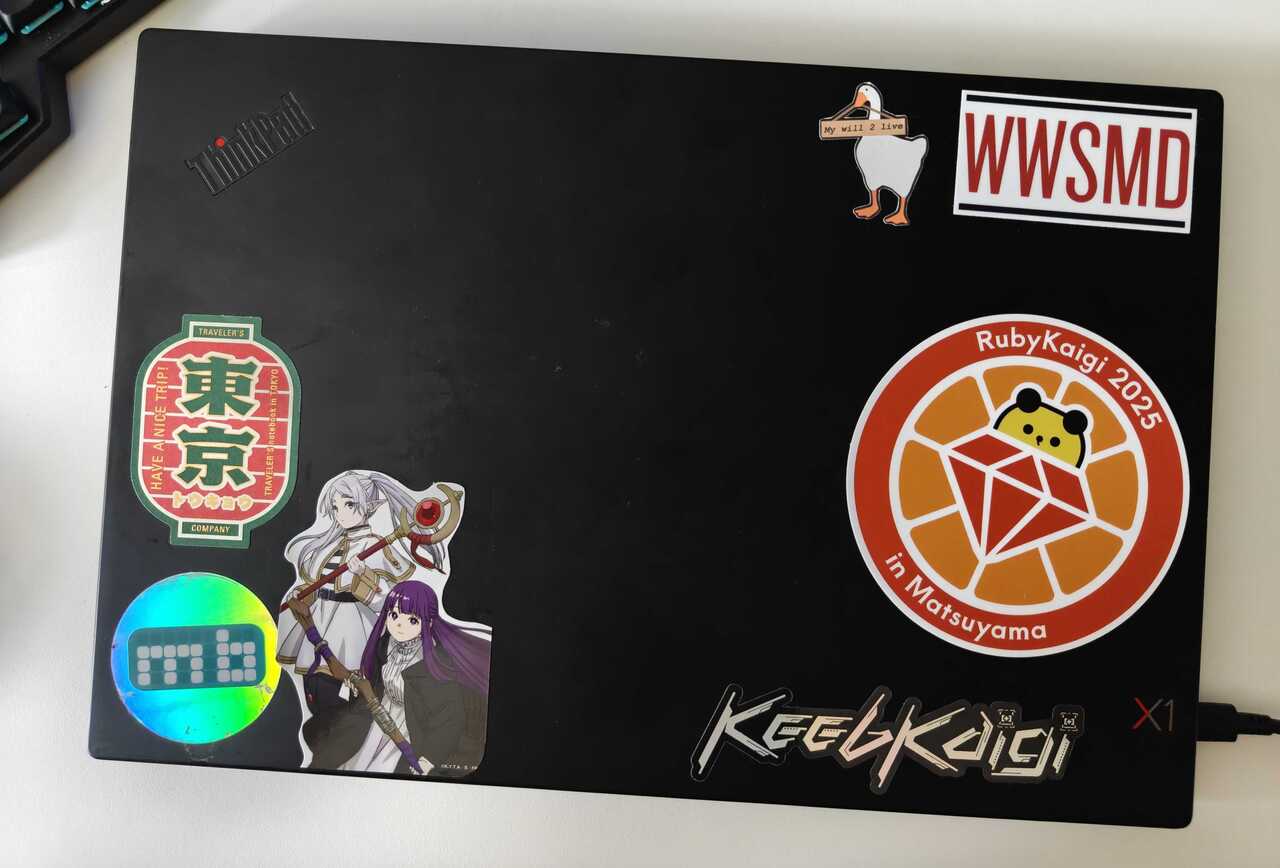
The machine itself dates from 2017, so about 9 years old at this point. It’s one of the highest specifications released at the time, with an Intel i7-8550U, 16 Gb of RAM, a 256Gb NVMe SSD and a 1920x1080 matte screen.
Modest specs for 2026, although given RAM/SSD prices right now, I’ll likely be able to sell it and retire soon.
The important piece of hardware for this build is the wireless card. It uses an Intel AC8265 dual band Wi-Fi card. It’s supported by the Linux kernel, assuming you have the proprietary firmware blob.
This is important because by default Guix uses the Linux-libre kernel, which only ships fully FLOSS drivers stripped of all binary blobs. So, out of the box, Guix on this machine is a non-starter.
Part 2: Enter Nonguix
Nonguix is a package repository (called a “channel” in Guix parlance), that contains non-Free software, including the full Linux kernel, CPU microcode updates, firmware packages and everything required to get Guix up and running on hardware that needs it, like this Thinkpad.
The Nonguix maintainers also ship a Guix installer that boots the full Linux kernel. Which is what we’ll need to use on this Thinkpad, so we can connect to Wi-Fi during the install. So the first thing we need to do is get that and make some install media.
Nothing special here, just download the .iso from the Nonguix Gitlab releases
page and burn it to a USB stick
somehow (I like dd).
It’s important to remember that the Nonguix install image is just a regular Guix install image, but modified to boot the full Linux kernel, not actually install it.
This means that we’ll have working Wi-Fi during the install process, but we’ll have to do some extra work to actually install the full kernel into our system.
Also, the Nonguix image is built from Guix 1.4.0 back in 2022. So it’s very old.
Both of these things are going to make installation more complicted than just following the installer. But at least we’ll have working Wi-Fi afterwards, so there’s that.
Part 3: Install
Boot the install medium and follow the graphical (TUI) installer. It’ll start with a big scary warning on a red screen about how this is the Linux-libre kernel and your Wi-Fi likely won’t work, ignore it, that’s just default behaviour from the Guix installer when it detects unsupported hardware. It doesn’t actually know it’s booting the full Linux kernel.
The rest of the installer should be fairly straightforward: connect to a network, define a root password, create a user, partition disks, set up locales etc.
I set up LUKS encryption using the installer at this point, as it does most of the hard work, of actually setting up the crypt-mapper and partitions, which reduces the work we have to do later. I also chose BTRFS for my root file-system, but this will have no bearing on the rest of the process so choose what you like.
At some point the installer will present you with a screen containing a load of Scheme code, and ask if you want to edit the config file before continuing with the installer. Stop here! If we continue at this point we’ll end up with that bare Guix install and no Wi-Fi that we spoke about.
Part 3 (a): Install environment setup
Guix system is (like NixOS) a Linux system that is configured declaratively using a domain specific language (DSL) that describes the desired state of the system.
In Guix, the DSL is built in GNU Scheme, and a system can be declared using the
(operating-system) record constructor
form,
which is located by default in the file config.scm.
Our graphical installer up to now, has been asking us questions in order to populate that file for this system, and now it’s asking us to verify the contents before the Guix daemon parses the file and makes the changes.
It’s this file that we’re going to be editing in order to tell the Guix daemon to build and install our new system with the full Linux kernel.
Because we’re messing around with our channel configuration we won’t be able to rely on the automated installer anymore. We’ll be mostly following along with the manual install procedure in the Guix docs. I’d recommend familiarising yourself with the documentation.
When you’re ready let’s switch to another virtual terminal with Ctrl-Alt-F3
and start the copy-on-write store with
herd start cow-store /mnt
/mnt is where our recently formatted disk partition has been mounted and is
the location for our new Guix system. The previous command ensures that packages
installed by the guix process running in the installer are also installed here,
rather than being kept in memory.
Now we’re going to start defining our channels. First make sure the guix config directory exists for the install user
mkdir ~/.config/guix/
Then capture our current channel config into the file:
guix describe -f channels > ~/.config/guix/channels.scm
Once we’ve done this we can edit the file (the Guix installer has nano
available, but I prefer mg, an implementation of microEmacs, which is also
available, and who’s keybindings are more familiar to me). We’re going to make a
few surgical edits to this file:
- Change the URL for the Guix channel from the savannah repo to
https://codeberg.org/guix/guix.git- it’s just faster and more reliable (at least it is for me in the UK). - remove the
(commit)form entirely. We’re going to update the package repo entirely so we don’t want to pin to a commit. - Change the
(branch)form so that the value is"master"instead of#f.
These changes will ensure that the next time we update our channels we’ll be pulling the latest packages from a fast mirror.
Now update the install environment:
guix pull
When you run this it will pull down the latest package definitions and code from
the Guix repo onto the local system. In this case we’re going to be essentially
doing a git pull from a commit somewhere in 2022 to the latest HEAD sometime
in 2026. Pulling upwards of 4 years worth of commits takes a minute, so be
prepared to take a break and do something else for a few minutes.
Now that we’ve got the latest Guix all set up, we’re going to add the Nonguix
channel and pull that too. It’s necessary to make sure that we’ve got the latest
Guix channel first so that the dependencies between packages in the channels
resolve. This is why we sadly can’t do this in a single step, so for now let’s
edit ~/.config/guix/channels.scm again.
This time we’re going to add another (channel) form to the (channels)
list. It should look like this:
(channel
  name 'nonguix
  url "https://gitlab.com/nonguix/nonguix")
Now you should have two channels defined inside your channels file. We’ll update
all the packages again, and then freeze the current state of both these channels
back to the channels.scm file:
guix pull
guix describe -f ~/.config/guix/channels.scm
This should be fast now: the Nonguix channel is substantially smaller than the Guix one, and we’re adding a new channel here rather than updating a very out of date one.
Once guix pull has finished, we need to make sure that your shell is pointing
at the most up-to-date version of the guix binary from the latest revision. Do
this with:
hash guix
Now that our system is configured with all the channels we need and we’re all up-to-date we can move forward with modifying our system config and performing the install.
Part 3 (b): Declaring the system
We’re going to be editing the /mnt/etc/config.scm file in this step. As we’ve
discussed before this file holds the main system declaration for the Thinkpad
we’re currently installing, and we need to make a couple of edits to it. First
to add some dependencies and the second to declare our kernel.
I’ll show these as pseudo diff output as I think it’ll make it easier to see
the edits. First add the nongnu modules to import all the keywords we need to
tell Guix about the full Linux kernel and boot process; this will be near the
top of the file:
- (use-modules (gnu))
+ (use-modules (gnu)
+              (nongnu packages linux)
+              (nongnu system linux-initrd))
(use-service-modules cups desktop networking ssh xorg)
And then a little further down, inside the operating-system form, we’ll
declare that we’re using the Linux kernel, and that we want CPU microcode and
binary firmware installed.
(operating-system
+ (kernel linux)
+ (initrd microcode-initrd)
+ (firmware (list linux-firmware))
  (locale "en_GB.utf8")
Now, because this config.scm was generated by the installer before we updated
our Guix install environment to latest master, it’s been generated by a
version of Guix that’s years old. There is one other edit we need to make to
this file to make it compatible with the latest guix and that’s to remove the
nss-certs package declaration, which no longer exists.
You can either find the package->specification form that defines nss-certs
and remove it entirely, or do what I do and replace nss-certs with
git. Because I know I’m going to need git installed on any system I work with
anyway so I can version control my system declaration.
It doesn’t have to be git here, it can be any package you like, but I prefer a more surgical edit like this as it reduces the risk of syntax errors in the config file. I like to keep things safe until I’ve actually finished the install to avoid having to redo all this work.
Once you’ve made those changes we’ve got everything setup: we’re using latest repos, we’ve got all the full Linux kernel and binary firmwares available, and we’ve built a system declaration to use them all.
The final step now before we can boot into our new Guix system is to actually
perform the install into our mounted root partition in /mnt. For that we use:
guix system init /mnt/etc/config.scm /mnt
And now you really will want to go do something else for a bit. This is going to build a full Linux kernel from source. On the Thinkpad X1C gen 6 I’m using this takes a couple of hours.
Once it’s finished reboot, and marvel at your delightfully empty install!
Part 4: Post-install
It’s not over yet. Our channels.scm didn’t include any passwords, and because
we skipped the automated installer it has forgotten the ones we specified. So
the first thing you’ll want to do is log in to your passwordless root account
and run passwd to create one, and while you’re there you should run passwd
for the username you created during the install process too, and then log out of
root and back in as your normal user.
The Guix installer has also (un)helpfully copied over a default channel configuration from the installation image, rather than the one we defined during the install process.
So unfortunately, we’re going to need to set up all the nonguix channels from scratch again in our new system. Although thankfully the installer should have installed the latest kernel into the Guix store on your running system so we won’t need to build it again (unless, like I once did, you get hit with a kernel update between initial install and post-install).
So, connect to a Wi-Fi network (because we’re running a full kernel,
hooray!). How you do this will depend on which method you specified during the
automated installer part: If you stuck with the default NetworkManager, which I
did, you’ll have nmtui available.
Once we have internet access we’ll need to follow most of the steps from Part 3(a) again to configure our channels. That is, as your normal user:
- Create the
~/.config/guixdirectory - Use
guix-describeto dump the current config - Modify
channels.scmto change the Guix repo to Gitlab and remove the commit pin - Update with
guix pull - Modify the
channels.scmagain to add the'nonguixdefinition guix hashto make sure you’re using the right binaryguix pullto update the system
Reboot once more, to fully boot into your new system, and breathe a sigh of relief that we’re finally done. Where done means: you have a running VT - there’s still a long way to go before actually having a running GUI and applications, but that’ll be another post.
I hope this info was interesting and/or useful. Installing Guix system on hardware that requires a full Linux kernel is certainly a bit of a hassle, especially as the released Nonguix image is so old. Thankfully there are ways of making the process easier, but only once you have a running Guix system.
I’m going to embrace the fact that most of my blog posts are about system
configuration these days and at some point soon I’ll write about turning an
existing installation into a pre-configured installation base using the
available guix system image tools.